Making markdown readable in VS Code
How to turn VS Code into a proper markdown reading and writing environment with mode switching, fonts, and Chrome preview
Coding agents produce a ton of markdown. Plans, specs, changelogs, documentation, it's become the default state. Reading it in a dark-themed code editor with a monospace font is kind of miserable. Pipe tables are illegible, headers blend into everything else, and it's hard to see what you (or your LLM) wrote.
I got tired of this and put together a setup I actually like: a "reading mode" keybinding that makes VS Code feel closer to Obsidian or Notion, and a one-key shortcut to pop any markdown file into Chrome for a proper preview (or quick print-to-PDF).
This guide covers what I did.
The problem with markdown in a code editor
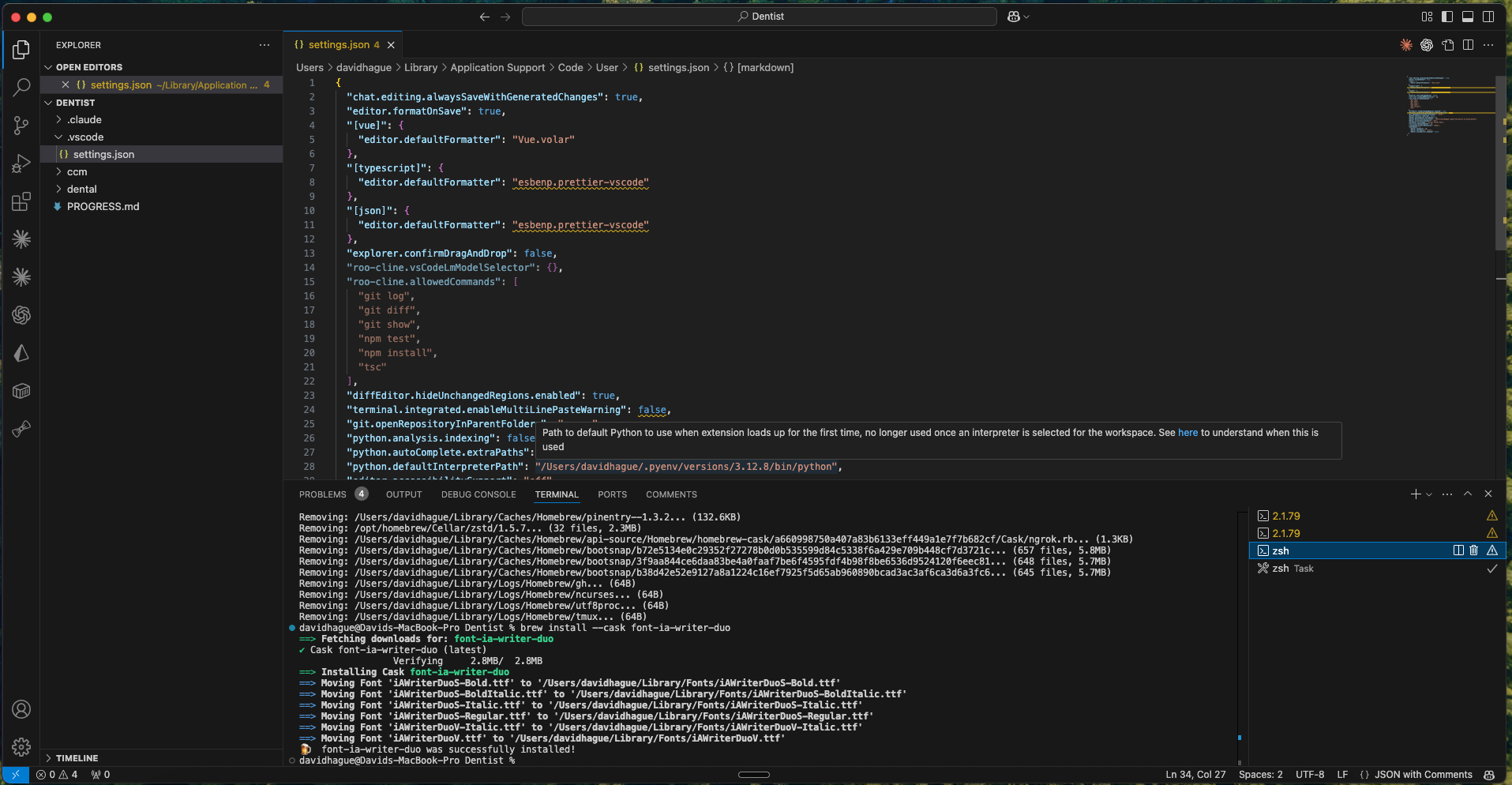
VS Code defaults are designed for code. Dark backgrounds, monospace fonts, file trees, terminal panels. That's perfect when you're writing TypeScript. When you're reading a product spec or reviewing a plan that Claude just wrote, it works against you. Your eyes fight the monospace font, the sidebar and terminal eat screen space, and tables just look like pipes and dashes.
I wanted two things: a way to make markdown comfortable to read without leaving VS Code, and a fast escape hatch to Chrome when I need proper rendering (tables, especially).
Here's what code mode looks like -- this is the default VS Code experience for markdown:
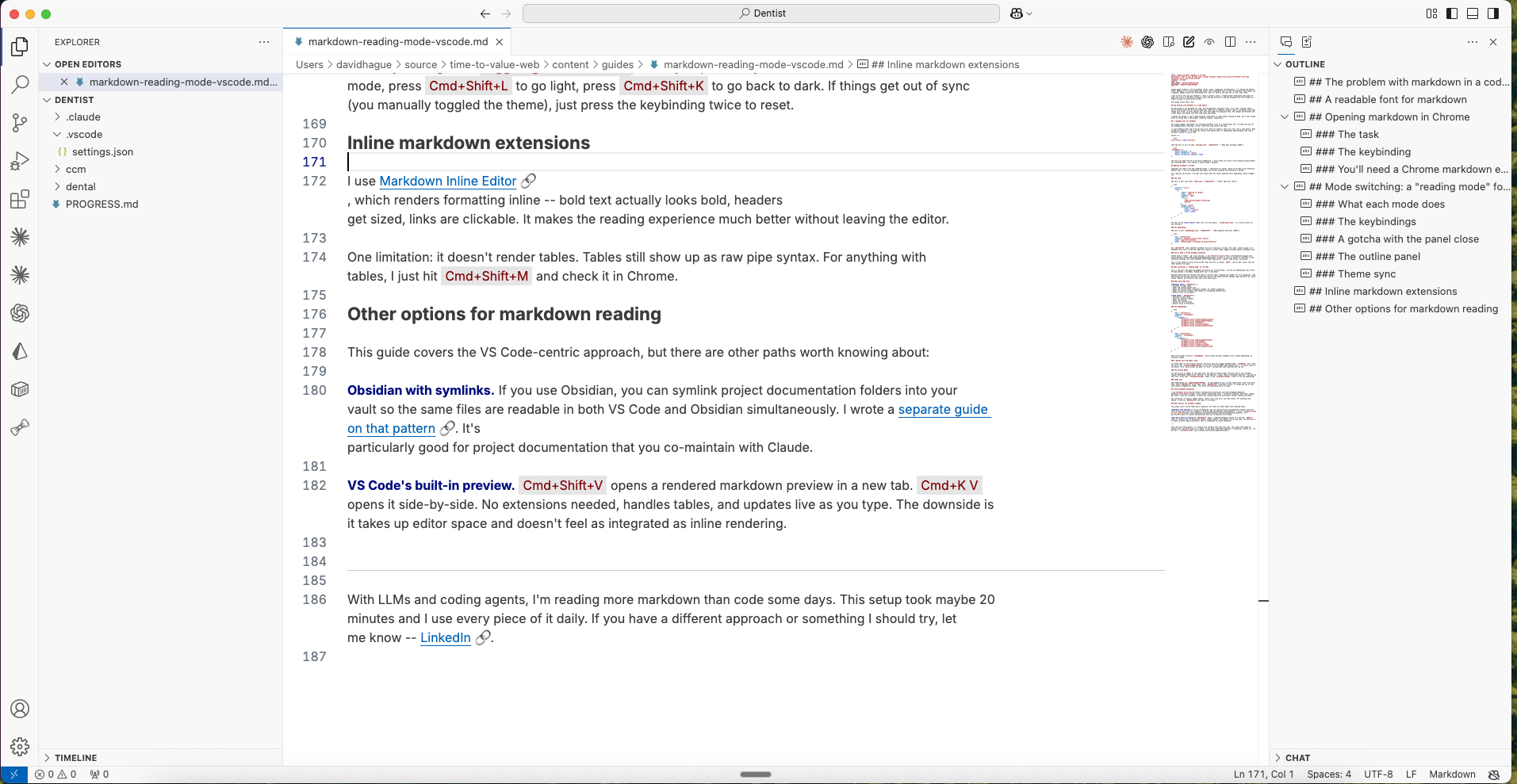
And here's the same editor after pressing Cmd+Shift+L to enter markdown reading mode:
A readable font for markdown
The single biggest improvement was switching markdown files to a proportional font. VS Code lets you set per-language editor settings, so your code files stay exactly the same.
I tried JetBrains Mono and iA Writer Duo first. Both are popular, both still felt like a code editor. What worked was Inter -- the same font family that Notion uses. It immediately made markdown feel like a document instead of source code.
Install it:
brew install --cask font-inter
Then add this to your VS Code settings.json (Cmd+Shift+P > "Open User Settings (JSON)"):
"[markdown]": {
    "editor.fontSize": 16,
    "editor.fontFamily": "Inter",
    "editor.stickyScroll.enabled": false
}
The font size bump from 14 to 16 helps readability. I also turned off sticky scroll because pinned headers were annoying when I just wanted to read through a document.
Opening markdown in Chrome
Sometimes you need to see the rendered output -- especially for tables, which no VS Code inline extension handles well. I set up a keybinding that opens the current markdown file directly in Chrome.
This requires two pieces: a VS Code task (which does the actual opening) and a keybinding (which triggers it).
The task
Add this to your user-level tasks.json (Cmd+Shift+P > "Tasks: Open User Tasks"):
{
    "version": "2.0.0",
    "tasks": [
        {
            "label": "Open MD in Chrome",
            "type": "shell",
            "command": "open",
            "args": [
                "-a",
                "/Applications/Google Chrome.app",
                "${file}"
            ],
            "group": "build",
            "presentation": {
                "echo": false,
                "reveal": "silent",
                "focus": false
            }
        }
    ]
}
Put this in the user-level tasks file, not the project .vscode/tasks.json, so it works across all your projects.
The keybinding
Add this to your keybindings.json (Cmd+Shift+P > "Open Keyboard Shortcuts (JSON)"):
{
    "key": "cmd+shift+m",
    "command": "workbench.action.tasks.runTask",
    "args": "Open MD in Chrome",
    "when": "editorLangId == markdown && editorTextFocus"
}
Now Cmd+Shift+M opens whatever markdown file you're editing in Chrome. The when clause scopes it to markdown files only, so the key combo still does its normal thing (toggle Problems panel) everywhere else.
You'll need a Chrome markdown extension
Chrome doesn't render .md files natively. I use Markdown Viewer. Install it, give it access to file URLs in the extension settings, and local markdown files render beautifully. Tables, code blocks, everything.
This is also handy for quick print-to-PDF. Open the file in Chrome, Cmd+P, save as PDF. Faster than any other method I've found.
Mode switching: a "reading mode" for VS Code
This is the part that made the biggest difference for me day-to-day. I set up two keybindings that switch VS Code between a "markdown reading mode" and a "code mode."
Markdown mode hides the terminal and opens an outline panel, keeping the sidebar for file navigation. Code mode brings the terminal back and closes the outline. The theme switches between light and dark too, which sounds cosmetic but actually helps your brain shift gears.
What each mode does
Markdown mode (Cmd+Shift+L):
- Switches to light theme
- Hides the terminal/panel area
- Opens the outline panel (secondary sidebar) for header navigation
- Keeps the explorer sidebar open (handy for navigating between docs)
- Returns focus to the editor
Code mode (Cmd+Shift+K):
- Switches to dark theme
- Opens the explorer sidebar
- Opens the terminal
- Closes the outline panel
- Returns focus to the editor
The keybindings
{
    "key": "cmd+shift+l",
    "command": "runCommands",
    "args": {
        "commands": [
            "workbench.action.focusActiveEditorGroup",
            "workbench.action.toggleLightDarkThemes",
            "workbench.action.closePanel",
            "workbench.action.focusAuxiliaryBar",
            "workbench.action.focusActiveEditorGroup"
        ]
    }
},
{
    "key": "cmd+shift+k",
    "command": "runCommands",
    "args": {
        "commands": [
            "workbench.action.toggleLightDarkThemes",
            "workbench.action.focusSideBar",
            "workbench.action.terminal.focus",
            "workbench.action.closeAuxiliaryBar",
            "workbench.action.focusActiveEditorGroup"
        ]
    }
}
Both use VS Code's built-in runCommands, which chains multiple commands from a single keybinding. No extension needed.
A gotcha with the panel close
If Claude Code (or any terminal session) has focus when you trigger markdown mode, closePanel won't work. The fix is the focusActiveEditorGroup at the top of the markdown mode command list -- it shifts focus to the editor first, which allows the panel to close. I burned some time figuring that one out.
The outline panel
For the outline to appear on the right side, you need to drag VS Code's Outline view to the secondary sidebar beforehand. Right-click "Outline" in the Explorer, choose "Move to Secondary Side Bar." You only do this once. After that, focusAuxiliaryBar opens it and closeAuxiliaryBar closes it via the keybindings.
Theme sync
Both keybindings use toggleLightDarkThemes, so they depend on your current theme state. Start from dark mode, press Cmd+Shift+L to go light, press Cmd+Shift+K to go back to dark. If things get out of sync (you manually toggled the theme), just press the keybinding twice to reset.
Inline markdown extensions
I use Markdown Inline Editor, which renders formatting inline -- bold text actually looks bold, headers get sized, links are clickable. It makes the reading experience much better without leaving the editor.
One limitation: it doesn't render tables. Tables still show up as raw pipe syntax. For anything with tables, I just hit Cmd+Shift+M and check it in Chrome.
Other options for markdown reading
This guide covers the VS Code-centric approach, but there are other paths worth knowing about:
Obsidian with symlinks. If you use Obsidian, you can symlink project documentation folders into your vault so the same files are readable in both VS Code and Obsidian simultaneously. I wrote a separate guide on that pattern. It's particularly good for project documentation that you co-maintain with Claude.
VS Code's built-in preview. Cmd+Shift+V opens a rendered markdown preview in a new tab. Cmd+K V opens it side-by-side. No extensions needed, handles tables, and updates live as you type. The downside is it takes up editor space and doesn't feel as integrated as inline rendering.
With LLMs and coding agents, I'm reading more markdown than code some days. This setup took maybe 20 minutes and I use every piece of it daily. If you have a different approach or something I should try, let me know -- LinkedIn.
This guide was my gift to you. I want everyone to be able to punch above their weight class by leveraging AI to do more with what they've got.
If this helped and you want to know how I help companies through AI consulting, mentoring, or workshops — sign up for my email list or reach out below.